IrriWatch | Advisor Navigation

Irrigation Insights

Alerts

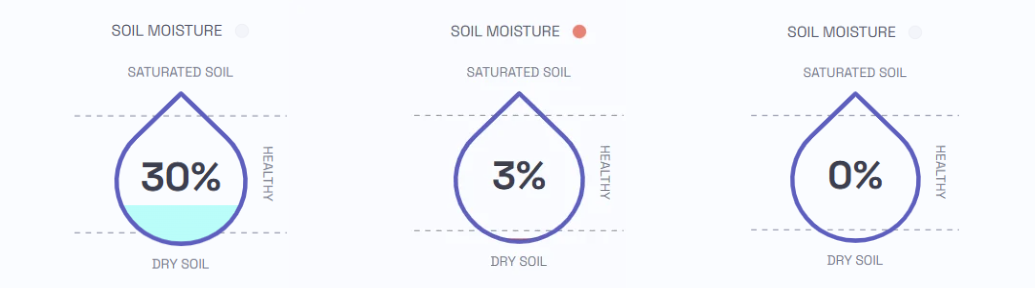
The “Soil moisture” alert notifies when the moisture level falls below a critical threshold (irrigation criteria), indicating that soil water is becoming insufficient for plant uptake, potentially leading to water stress if irrigation is not applied. When the alert is triggered, the moisture level is still within the field capacity range, meaning the alert is issued before the plant experiences stress and before the critical soil moisture level is reached.


The   in the Soil moisture alert widget reflects the relative soil moisture in the root zone compared to the field capacity. This differs from the calculations for “root water tank”, which uses the wilting point as the lowest threshold for water availability, as it focuses on readily available water.

If the moisture level drops below the default critical threshold of 10%, a red dot alert is triggered, indicating that the soil may become too dry without irrigation. The healthy soil moisture range is set between 10-100%. If the moisture exceeds 100%, indicating saturation beyond Field Capacity, no alerts are issued, and the Soil Moisture widget will display “MAX.” The 10% alert threshold can be adjusted in the irrigation inputs at the field level (box irrigation criteria) to trigger alerts earlier or later, depending on crop management needs. It can also be adjusted throughout the season as water needs change. 

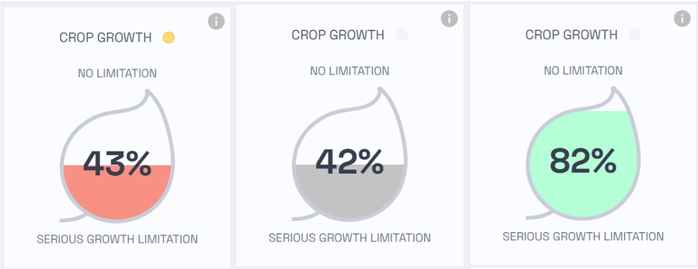
The "Crop Growth” alert on the portal sends field specific notifications when crop growth is uneven in fields where the crop has been established. It is calculated by dividing the crop growth (average per field) by the attainable crop production, which is based on the 90th percentile of daily crop growth, in the same field.

If the calculated daily value for the crop growth is below 70% in presence of vegetative cover of at least 20%, an orange dot alert indicating reduced growth will appear on the left side panel and in the overview. However, when the vegetation cover is less than 20% indicating the crop is not well established, the Crop Growth alert is turned off and the widget turns grey.

Irrigation Insights

Write your awesome label here.

Irrigation Insights

In Irrigation Insights, users can scroll down to view the field’s Next Advised Irrigation, a 7-Day Irrigation Planner, and the Virtual Soil Moisture Probe. To access additional graphs, users can click on the user icon in the top right corner, go to User Interface under User settings, and enable the 'advanced feature box'. This will display three additional graphs: Actual Evapotranspiration, Virtual Tensiometer, as well as Cumulative Evapotranspiration, Applied Water, and Precipitation. 

Write your awesome label here.

Data Update

On the Field Insights page, the most recent thermal update is shown at the top along with field details. Knowing that a thermal update was received yesterday indicates if the data was updated and includes recent irrigation events, which is used for determining real-time irrigation scheduling found under the Irrigation section. In the event that no thermal satellite update is available, the platform continues to deliver uninterrupted data using a daily water balance. 
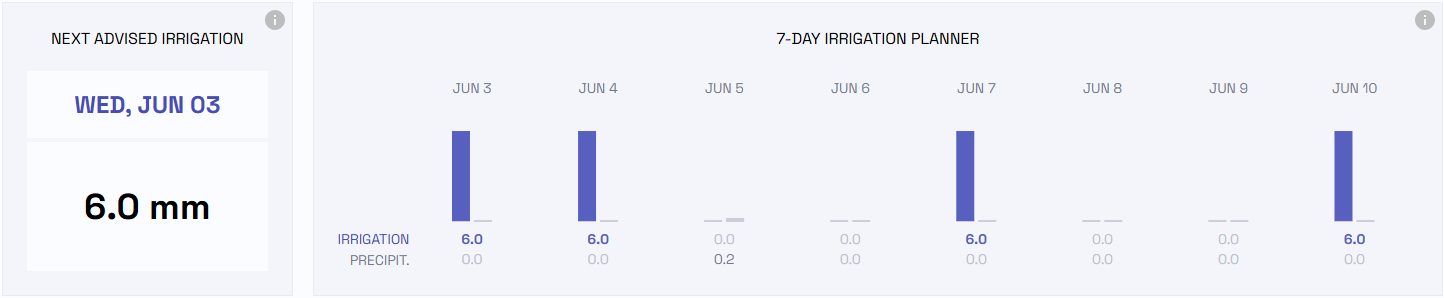
Next Advised Irrigation and 7-Day Irrigation Planner:
Next Advised Irrigation provides the recommended Day of the Week, Date, and Amount (in mm) of irrigation for the next event. This is based on the 7-Day Irrigation Planner, which outlines irrigation
scheduling and water recommendations for each day over an 8-day forecast period. The planner takes into account factors such as the minimum irrigation interval and other default or customized settings specific to the irrigation system type (irrigation criteria, desirable storage, irrigation default). 

Irrigation Planning Process: Soil moisture in the root zone is tracked daily, along with forecasts for precipitation, weather conditions, evapotranspiration, and other losses over the next 7 days. This helps predict moisture changes over the week if no irrigation is applied. 

The planner is updated daily. If an irrigation or rainfall event has already occurred and raised the moisture level above the Moisture Alert Trigger, irrigation is not recommended the following day. However, if the moisture remains low, the weather conditions are reforecast, and the required amount of water is recalculated to achieve the desired moisture level. 

Moisture Alert Trigger

When the soil moisture is forecasted to fall to the minimum “irrigation criteria” (currently set at 10% above the critical soil moisture or “red line”), an irrigation alert is triggered for that day.

Irrigation Requirement Calculation

The irrigation amount is calculated to replenish moisture lost through evapotranspiration and other factors, such as percolation and runoff. Additionally, the system ensures the soil moisture reaches the “desired moisture level” or desirable storage (currently 35%, within the green zone), ensuring that it stays between the critical level and field capacity. 

Irrigation Interval Consideration

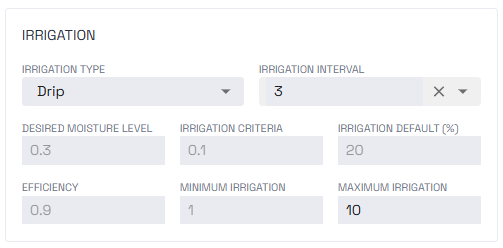
The interval between irrigation events is also considered (for ex. Currently set to 1 day by default for pivots and drip irrigation). This helps ensure that enough water is applied to prevent moisture from dropping below the critical level before the next irrigation opportunity. 

Pixel-Level Irrigation Planning

The irrigation plan is generated for each pixel in the field. If a certain percentage of pixels (‘irrigation default”) are expected to be stressed therefore meeting the irrigation criteria, irrigation will be recommended. If fewer pixels are stressed, no irrigation advice is given. For instance, if only a small section of the field requires water, but the rest has adequate moisture, irrigation will not be advised. 

Irrigation Settings

Each irrigation system uses default settings for irrigation criteria, desirable storage, irrigation default and minimum irrigation rotation, but these can be adjusted based on field-specific needs, such as system capacity, water rotation, and other factors. To customize these settings, Managers or Editors can go to the Data & Insights page, select Edit Field to access the adjustable parameters (for help or questions: irriwatch@hydrosat.com). The changes are reviewed and approved by Customer Support.

The calculations for the following day, made at midnight, will reflect the updated inputs. 

Virtual Soil Moisture Probe


The best practice is to maintain soil moisture within the root zone, keeping it in the green zone between field capacity and the critical soil moisture level. Additionally, a narrower range between the upper and lower values within a field is preferred for more uniform soil moisture conditions. IrriWatch operates with default crop settings, but some crop varieties are more drought-sensitive or resistant than others. There is an option to adjust the drought sensitivity by shifting the critical soil moisture line upward (for drought-sensitive crops) or downward (for drought-resistant crops). To customize the drought sensitivity, Managers or Editors can go to the Data & Insights page, select Edit Field to access the adjustable parameters (for help or questions: irriwatch@hydrosat.com).  

Virtual Soil Moisture Probe graph displays the history of moisture of the selected field, wherein:

The Solid Blue Line

This is the soil moisture in the root zone averaged across all 10 by 10 m pixels located in the field. The blue shaded area represents the variability within that particular field you are looking at. To view the spatial variability, the soil moisture layer is available in the Map View.

The Blue Horizontal Dotted Line

This (between the green and blue zone) is the Volumetric Water Content (VWC) at field capacity; in this example, it is 0.301 or 30% as a fraction) because it is clay loam soil. When moisture exceeds field capacity, it leads to percolation, as the soil can no longer hold the excess water. This results in wasted water, particularly if it is due to over- irrigation, and can pose a potential risk to plant health, especially for crops sensitive to waterlogging effects.

The Solid Red Line

 This (between the red and green zones) represents the critical soil moisture level (the critical soil moisture level is influenced by soil type but is not fixed, as it can vary depending on weather and crop conditions ), which indicates the crop water stress threshold. Below this moisture level, soil moisture becomes unavailable for plant uptake.

The Red Horizontal Dotted Line

This marks the permanent wilting point shown here as 0.144 or 14% as a fraction.

Actual Evapotranspiration (ET)

This represents the total water vapor flux from the land to the atmosphere, influenced by factors such as weather conditions, crop growth, and soil water availability in the root zone. This is often referred to as consumptive use or ET. In the graph, Actual Evapotranspiration, as the sum of Evaporation and Transpiration, is provided along with the actual Transpiration part. Evaporation can be obtained as the difference between actual ET and actual Transpiration.

From a technical standpoint, evaporation should be minimized, as it primarily occurs when standing water is present on the ground, indicating that irrigation was inefficient..
Write your awesome label here.

Virtual Tensiometer

The Virtual Tensiometer graph, available to advanced users, functions similarly to a ground-based tensiometer by measuring soil water potential (also known as matric potential). This measurement indicates how tightly water is held in the soil and how easily plants can access it and the tensiometer gauges the suction or tension the soil exerts on the water in its pore spaces. In contrast to a ground based sensor, the virtual tensiometer offers data for the entire field and displays the soil water potential at root depth, rather than at a fixed depth.


In the graph within Data & Insights, the field’s average value is represented by a continuous blue line, with variability across the field shown as a light blue shaded area around the average. Similar to the soil moisture graph, it is best practice to maintain the Soil Water Potential at the Root Zone within the green zone, which is between field capacity and the critical soil moisture (indicated by the red line). For better uniformity across the field, a smaller range between the upper and lower values is ideal.
To view spatial variability within the field, the soil water potential layer is also available in the Map View, presented as a 10 by 10-meter pixel layer. 

ET, Applied Water, and Precipitation Cumulative

The Evapotranspiration, Applied Water, and Precipitation Cumulative graph combines the total values of evapotranspiration, irrigation, and precipitation from the first sowing/planting day (or from the start of the order if no planting date is provided). These values are particularly useful at the end of the crop cycle or season for assessing water productivity, as well as throughout the season for tracking water inputs via irrigation and precipitation, and outputs through evapotranspiration (ET).


Evapotranspiration and Applied Water are outputs of IrriWatch calculations, while Precipitation is taken directly from meteorological data. There may be significant variation in precipitation within a region, and meteorological data may not capture this. If weather stations are available or if there is information about precipitation, it is recommended to add it manually or automatically through the API.  

Write your awesome label here.
If you need a reminder about the use of a section within IrriWatch, hover over or click the symbol nearby.

For more IrriWatch | Advisor:

Learn more about the features, data and uses of IrriWatch | Advisor.

Help us
Improve

Your feedback helps us make our Academy more useful. Tell us about your experience and what you'd like to see next.

Share With
Your Network

Know someone who could benefit?
Share the IrriWatch Academy with your colleagues and network.